Friday, August 24, 2007
REVIT Structure 2008 Rebar Area Reinforcing
Tuesday, August 21, 2007
First Annual CADclips University
This November 20, 21, 22, 23.
Click the logo above for more information.
Saturday, August 18, 2007
RAC 2008 Color Schemes Demo
I have to say, I never quite got on the band wagon for the 'Color Fill Schemes' features of REVIT......until now that is.
This is clearly a 'value add' service I now provide. It's so easy it will make your head spin.
It's 'all about' the 'Room' objects. Data in = Data out.
Once you place the room objects (which get created in a single click) you can provide the room information. ie: Room Name, Number, Floor Finish, Base Finish, Ceiling finish, Wall Finish, Department, Occupant. Then that's it......the work is all done.
The Color Schemes take over from there and they automatically assign the colors. Then you can re-assign any color you choose.
How would you like it colored up?
You can even add new system parameters to rooms through 'project parameters' to add in a field that does not come with the out of the box 'room' object.
Perhaps you want to sort / color a plan by 'lighting type' or 'heating source' or 'type of carpet' 'type of tile' anything you want.
Thursday, August 16, 2007
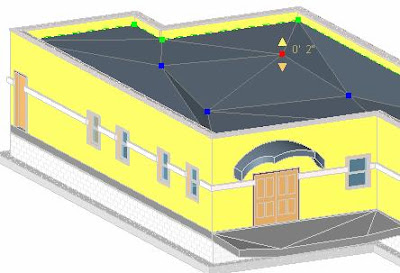
REVIT 2008 Shape Editing Roof Tools
REVIT 2008 Architecure and Structure have made leaps of progress in the way of Roof, Floor and Slab tools.
With the Draw Points, Modify Sub Element, Draw Split Line and Pick Supports tools you can specify the relative elevation of points or edges on a roof, floor or slab.
You must start with a flat roof, floor or slab and if it's a roof it cannot be attached to another roof but I'm here to tell you "it really works wonders on modeling flat sloped roofs".
You can however 'attach' walls to the top / underside of these warped roofs and floors. You can pick 'beam supports' as shape criteria and the floor, roof, slab will form a split line over the beam and create the slopes. The beam supports themselves can be sloped!
(click the link above to play the CADclip or right click and "save target as..." to download)
Wednesday, August 08, 2007
REVIT Furniture Cost Schedule Tutorial
You start by filling in the 'cost' parameter (field) for the family. Then you create a schedule, select the catagory (furniture in this case) and add the fields you want to quantify such as cost, family type and floor level of the furniture item.
Then we use the Grand Total and Total Costs schedule properties to list the information.
Below is a link to a great CADclip explaining how to create a Furniture Schedule and Total up the costs.
Thursday, August 02, 2007
REVIT Mass Building Maker Tutorial
Autodesk has provided us with the REVIT Building Maker tools to convert Mass Object faces to Walls, Roofs, Curtain Systems and Floors.........and maintain associativity.
The key is we have to make sure the Mass Object Family is of the Family Category > 'Mass'.
You can maintain two seperate 3D views to manage the Mass object and the new Building Components simultaneously. You can change or alter the Mass object and 'Remake' the building components and watch the model update instantly. It's like magic.
Below is a link to a great CADclip explaining how to use the 'Building Maker' tools.
Friday, May 18, 2007
The REVIT Factory
Check out the REVIT Factory web site ! REVIT Dependent Views - Plan Application
Below is a great CADclip link explaining how to use the new 'dependent view' in an elevational aspect.
More info here > for Dependent Views and hiding objects
REVIT Dependent Views - Elevation Application
All the REVIT 2008 products can take advantage of the new 'dependent view' tools.
Esentially, you can cut up a primary view into other smaller views while still keeping the connectivity. The smaller, dependant views are organized below the primary view n the Project Browser for convenient access.
Below is a great CADclip link explaining how to use the new 'dependent view' in an elevational aspect.
More info here > for Dependent Views and hiding objects
Annotation Crop Region
Have you ever tried to crop a view and the dimensions (or some of them) don't get cropped ?
Well REVIT introduced the 'Annotation Crop' region to solve this problem. The reason is: The objects that the dimensions or annotations are related to are still within the 'model crop' region even though the actual dimensions are not.
If you turn on the 'Annotation Crop' region you will see a new 'Green' crop region that will solve the problem.
By default the primary views in revit do not have the 'annotation crop' region turned on but it is completely available.
Below is a great CADclip link explaining how to use the new 'annotation crop' region.
Thursday, April 26, 2007
Over 300 REVIT Jobs posted here
Friday, April 20, 2007
Country Style Porch Roof
* Click HERE to read about 100's of REVIT jobs *
Wednesday, April 18, 2007
Roof with a Kicker
Option 1
You use two different roofs with different slopes. You create the lower roof by 'Footprint' then use a 'Cutoff Level' and 'Cutoff Offset' property to eliminating the top part of the roof. Then you create the upper roof by 'Foorprint', size it accordingly and align it vertically within the opening in the lower roof.
Option 2 (prefered method)
You also use two different roofs with different slopes. However for the lower roof we use a model 'Opening' to cut a hole in the roof. Then you create the upper roof by 'Footprint', size it accordingly and align it vertically within the opening in the lower roof. I find this my prefered method as it is simplier and easier to adjust. If you delete the 'Opening' the hole dissappears.
* Click HERE to read about 100's of REVIT jobs *
Wednesday, April 11, 2007
REVIT Diagonal Wall Reveals
Below is a link to a 10 min. CADclip explaining how to create a diagonal or 'non linear' wall reveal or sweep.
* Click HERE to read about 100's of REVIT jobs *
Tuesday, March 20, 2007
Plan Region - View Range Tip
I am a little embarassed to say I was down right puzzled with a wee Plan Region / View Range problem over the last week or two.
Specifically in regards to windows. I was able to get the window opening to show in the plan region but not with the window frame, glass and sash detail to display.
I revisited the area off and on each time I opened the model, always frustrated with no success. Yes, I was even contemplating drawing in detail lines to represent the window frame, glass and sash that would not show up....aaaaaaahhhhhh !
I had stretched the Plan Region boundary before to get doors to display properly because the door panel would not show up.......and THEN THE LIGHT BULB CAME ON (I love it when the light bulb comes on). I quickly panned over to the window area and stretched the Plan Region boundary in width just a micro smiggin (even though the window was already completely within the plan region boundary) and SHAZAM ! It worked. Two words....Miller Time.
So I figure......I can't be the only one who has had this problem.
Just below is a 4 min. CADclip to explain the deal.
REVIT - Plan Region / View Range Tip - Video Tutorial
Sunday, March 18, 2007
Wall Girt System
2. Then we add in a new Reference Plane, in Plan view and name it Girt System.
3. Then we open an elevation view perpendicular to the reference plane, looking directly at the proposed Girt wall.
4. Then from the Modelling tab of the design bar we start the Beam System tool.
5. We specifiy the new reference plane as our working plane.
6. We check the beam system properties and specify the beam / girt type, layout style / spacing etc.
7. We sketch in the beam (girt) system outline and clck finish.
8. Then we can control the overall girt location by manipulating the location of the reference plane.
9. We can edit the beam (girt) system outline, spacing and direction.
10. We can change individual girt types and rotation angles.
11. We can move a grid line and see REVIT's parametric technology at work.
12. From then on it's just a matter of playing with the new beam (girt) system to your liking.
I use a c-channel girt but you can make your own 'Z' girt shape if you want and use that instead.
Too easy.....REVIT .....%$#^& ......ROCKS !
* Click HERE to read about 100's of REVIT jobs *
Tuesday, March 06, 2007
Girder Joist Purlin Assignment Rules
Well now I have it figured out and thought I'd pass on what I learned.
1. Girders, Joists and Purlins are all 'Beams'
2. First of all if you leave the Usage as Automatic REVIT will infact assign the correct usage.
3. The structural usage determines the 'linestyle' for 'course detail' visibility. (note the line weights and styles above)
4. The Structual usage can also be specified in a schedule.
5. If you click on on the beam after the fact and check the 'structural usage' property it will tell you what has been assigned and you can change it.
6. REVIT assumes the usage based on what the beam is being connected to at each end.
Here's the rules in a nut shell
Column to Column = Girder
Column to Girder = Girder
Girder to Girder = Joist
Column to Joist = Joist
Joist to Josit = Purlin
Joist to Purlin = Purlin
Purlin to Purlin = Purlin
Column to Purlin = Purlin
ie: Girders are the big ones and Purlins are the small ones.
That's it......next topic.........
R E V I T.. really does ..R O C K !
.
Monday, March 05, 2007
REVIT Structure - Sloped Flat Roof System
* Click HERE to read about 100's of REVIT jobs *